

Summary
Why ZimaOS Is the Best Lightweight NAS Operating System for Budget DIY Storage Servers
After experimenting with several Network-Attached Storage (NAS) systems over the years, I’ve realized that choosing the right hardware is only part of the equation. The operating system powering the NAS is just as important, and with so many options available, it’s easy to end up with software that’s either too advanced or too demanding for the hardware you’re using.
That was exactly the challenge I encountered with my TerraMaster F2-425. Although I eventually managed to install TrueNAS, getting everything working required far more workarounds than I expected. Looking for a simpler alternative, I gave ZimaOS a try, and it quickly became my preferred operating system for straightforward NAS builds using affordable hardware.
ZimaOS Is Perfect for Budget NAS Hardware
Low System Requirements Make a Big Difference
I’m firmly in the TrueNAS camp, and my entire 3-2-1 backup strategy relies on systems powered by this robust storage platform. Even so, I’ll admit that TrueNAS isn’t always the ideal choice—especially for newcomers or anyone building a NAS on a limited budget.
Its recommended 8GB memory requirement can be difficult to meet on entry-level systems, particularly with memory prices remaining relatively high. Upgrading RAM simply to satisfy the operating system often defeats the purpose of building a budget NAS.
Although the latest TrueNAS Community Edition is much easier to navigate than previous versions, its interface and feature set can still overwhelm first-time users.
Unraid is generally more beginner-friendly, but its licensing model makes it difficult to recommend without hesitation. OpenMediaVault is another capable alternative, although getting the most from it usually requires additional manual configuration.
ZimaOS avoids many of these compromises.
Its lightweight hardware requirements make it well suited for inexpensive NAS systems, while its intuitive interface dramatically reduces the learning curve. One feature I particularly appreciate is the ability to use the operating system drive for storing user data, something distributions like TrueNAS don’t support without additional modifications.
This is especially valuable on compact two-bay NAS devices that don’t include dedicated SSD slots for the operating system.
Affordable Licensing Without Pressure
Compared to Unraid, ZimaOS also offers a more approachable licensing model.
The free edition isn’t a time-limited trial, so there’s no risk of losing access after a month if you don’t purchase a license.
Instead, the free version limits users to:
- Three user accounts.
- Four storage drives.
- Ten active applications.
Initially, I wasn’t thrilled about the drive and application limits. However, considering that the lifetime license costs only $30, the restrictions feel entirely reasonable.
Installation Is Quick and Beginner-Friendly
Getting ZimaOS up and running couldn’t have been much easier.
I simply:
- Flashed the ZimaOS
.imgfile to a bootable USB drive. - Booted my TerraMaster F2-425 from the installer.
- Selected the installation drive.
- Waited for the installation process to finish.
- Created my first user account through the web interface.
Within a short time, the NAS was ready for use.
A Clean and Intuitive Web Interface
Simple Enough for Beginners, Powerful Enough for Daily Use
Despite my reservations about Synology’s expensive hardware, I’ve always appreciated the simplicity of DiskStation Manager (DSM).
In many ways, I actually find ZimaOS even easier to configure.
Anyone who’s previously used CasaOS will immediately recognize the interface, since ZimaOS builds upon many of the same design principles while adding features specifically tailored for NAS management alongside Docker containers and virtual machines.
Storage Management Made Easy
The built-in Zima Storage wizard makes preparing new drives straightforward.
Users can quickly configure storage pools while choosing from standard RAID configurations to maximize the value of existing hard drives.
Unlike many NAS operating systems, ZimaOS also includes a built-in file manager that effectively turns the server into a personal cloud without requiring complex network share configurations just to transfer files between devices.
SMB Sharing Couldn’t Be Easier
One of my favorite aspects of ZimaOS is how effortlessly it handles SMB network shares.
Instead of navigating multiple configuration files or managing ACL permissions, I simply right-click any folder within the file manager and choose Share via Samba.
From there, I can:
- Create new users.
- Configure access permissions.
- Enable Time Machine support.
It’s easily one of the simplest SMB implementations I’ve encountered on any NAS platform.
Built-In File Transfers and Backup Features
ZimaOS also includes PeerDrop by default, allowing fast file transfers between devices without relying on traditional network shares.
The operating system offers desktop and mobile applications that let me monitor the NAS remotely while automatically backing up files.
Its integrated 3-2-1 backup functionality supports several destinations, including:
- Cloud storage services.
- USB drives.
- LAN shares.
- Remote devices connected through Tailscale.
These built-in backup capabilities make protecting data significantly easier without requiring additional software.
A Few Features Still Need Improvement
While ZimaOS offers an impressive experience overall, there are still a few areas I’d like to see improved.
The long-awaited JBOD feature remains marked as “Coming Soon.”
Additionally, NFS and iSCSI support still rely on manual Linux command-line configuration rather than a graphical interface.
This contrasts sharply with the platform’s excellent SMB implementation.
Although these limitations aren’t deal-breakers, native graphical tools for configuring NFS and iSCSI would make ZimaOS even more approachable for beginners.
Docker Support Is Excellent
Self-Hosting Is Surprisingly Easy
When it comes to self-hosting applications, ZimaOS borrows heavily from CasaOS, one of my favorite platforms for managing Docker environments.
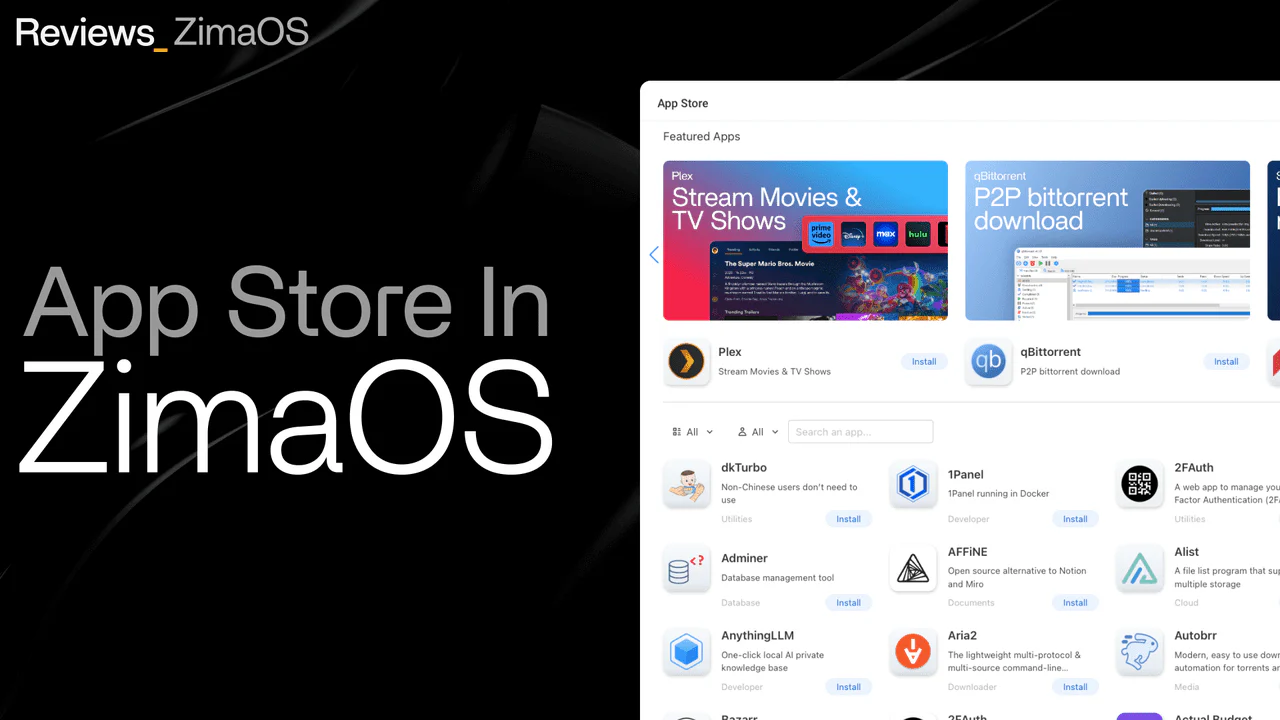
Like TrueNAS and Unraid, ZimaOS includes an integrated App Store featuring dozens of open-source applications that can be deployed with minimal effort.
Most application templates already include sensible default settings, allowing installations to complete without extensive manual configuration.
For more advanced users, ZimaOS also supports:
- Standard OCI container images.
- Docker Compose files.
- Traditional
docker runcommands.
This combination makes the platform suitable for both beginners and experienced self-hosting enthusiasts.
Virtual Machine Support Adds Extra Flexibility
Beyond Docker containers, ZimaOS also supports full virtual machines.
My TerraMaster F2-425 only includes 4GB of RAM, so my testing has been limited to lightweight Linux distributions such as:
- Fedora.
- Linux Mint.
- Debian.
Even after allocating 2GB of RAM and two of the Intel N100 processor’s four CPU cores, these virtual machines performed surprisingly well.
Although the virtualization tools aren’t as comprehensive as those found in TrueNAS, Unraid, or Synology DSM, they’re more than capable of introducing beginners to virtual machine management.
ZimaOS Is Ideal for Simple NAS Deployments
Despite how much I’ve enjoyed using ZimaOS, I still rely on TrueNAS for my primary data storage infrastructure.
TrueNAS continues to offer stronger data protection through ZFS, more advanced virtualization capabilities, broader support for enterprise-grade network protocols, and significantly more powerful RAID options.
However, those strengths also come with greater complexity.
For users who simply want a reliable NAS without spending hours learning advanced storage management, ZimaOS offers an excellent balance between simplicity, performance, and functionality.
It may not satisfy experienced enthusiasts looking for every advanced feature available, but for beginners and anyone building an affordable, hassle-free NAS, ZimaOS is one of the best operating systems currently available.