

Summary
AnduinOS Review: The Best Linux Distribution for Windows Users Switching to Linux
Making the move from Windows to Linux is often easier than many people expect, although it’s completely understandable to have concerns before taking the leap. Adapting to a new desktop environment can feel challenging, especially if you’re worried that some of your favorite Windows applications may not be available.
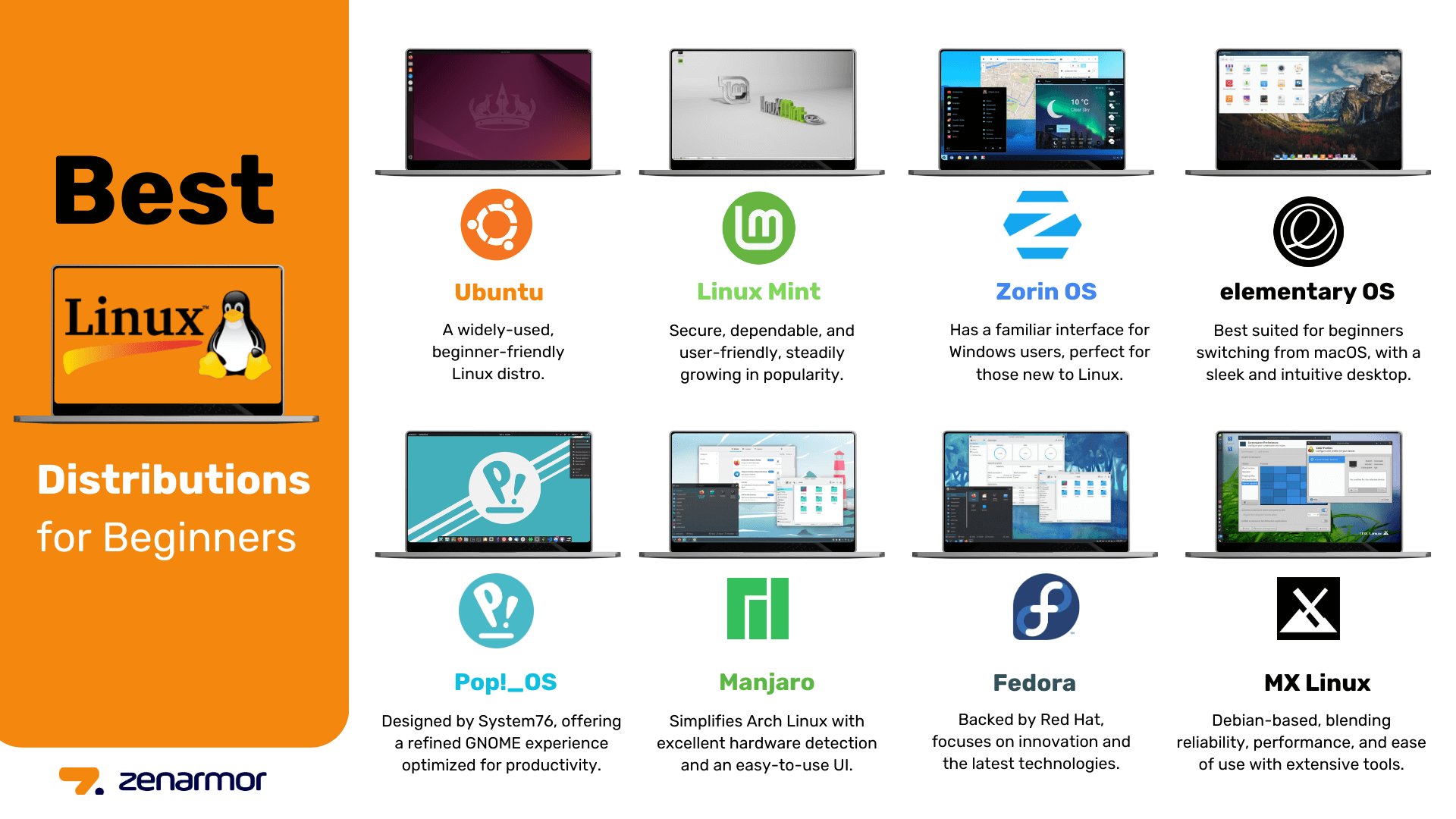
While beginner-friendly distributions like Ubuntu and Linux Mint already simplify the transition, another option makes the experience even more familiar—AnduinOS. Developed by a Microsoft engineer (who isn’t part of the Windows team), this relatively new Linux distribution is specifically designed to ease the switch from Windows. After spending several days using it, I’ve been genuinely impressed.
Built on Ubuntu with Meaningful Improvements
A Familiar Foundation Enhanced in the Right Places
AnduinOS is built on Ubuntu, giving it one of the strongest foundations available in the Linux ecosystem. Ubuntu has long been recognized as one of the most user-friendly Linux distributions, offering a smooth installation process and an intuitive desktop experience.
Like Ubuntu, AnduinOS is available in two editions: a Long-Term Support (LTS) release based on Ubuntu’s LTS branch and a standard release that delivers newer features with a shorter support lifecycle. My experience has been with the standard release.
Although AnduinOS remains Ubuntu underneath, it introduces several welcome improvements. One of the biggest changes involves software packaging. While Ubuntu continues to prioritize Snap packages—a decision that has divided many Linux users—AnduinOS shifts its focus toward Flatpak, providing access to a vast library of Linux applications through a package management system that many users consider more reliable and consistent.
As with any Linux distribution, alternative package managers can still be installed if desired, but Flatpak offers an excellent experience right out of the box.
A Desktop Experience That Feels Just Like Windows
Familiar from the First Boot
Since AnduinOS is based on Ubuntu, it naturally includes familiar components such as the GNOME desktop environment and Ubuntu’s Settings application. What makes the distribution stand out, however, is how extensively GNOME has been customized.
From the moment the desktop loads, AnduinOS strongly resembles Windows 11. Even the default wallpaper captures the color palette and visual style of Microsoft’s operating system. The real achievement, however, lies in the desktop interface itself.
Using a carefully selected collection of GNOME extensions, AnduinOS transforms GNOME into an experience that closely mirrors Windows 11. The traditional Ubuntu dock and top status bar are merged into a single taskbar, placing everything exactly where Windows users expect to find it—from the Start menu and running applications to the weather widget and system tray.
The resemblance is remarkably accurate. While I don’t necessarily prefer this layout over Ubuntu’s default interface, it’s impressive to see just how closely GNOME can replicate the Windows experience.
The same attention to detail extends to the Start menu, which closely resembles the Windows 11 design while feeling smoother and more responsive, much like many Linux applications.
Small details further enhance the experience, including:
- A blurred taskbar that blends naturally with the desktop background.
- Desktop icons that behave more like Windows shortcuts.
- A built-in tiling assistant similar to Windows 11 Snap Assist.
- Clipboard history support.
These features are powered entirely by GNOME extensions. Unlike Ubuntu, AnduinOS also includes an extension manager by default, making customization immediately accessible. Although I still recommend installing a more advanced extension manager for additional flexibility, the included solution works very well.
Windows Familiarity Meets Linux Customization
A Desktop That Becomes Truly Yours
One of AnduinOS’s greatest strengths is its ability to combine Windows familiarity with the extensive customization capabilities Linux is known for.
The interface immediately feels comfortable for Windows users, but unlike Windows, nearly every aspect can be personalized to suit individual preferences.
Customize the Taskbar
The taskbar is powered by the popular Dash to Panel extension, and its settings are incredibly comprehensive.
With just a right-click, you can:
- Enable automatic taskbar hiding.
- Adjust its height and width.
- Turn it into a floating dock.
- Reposition taskbar elements.
- Move the taskbar to any screen edge.
- Customize colors, icon styles, spacing, and padding.
The level of control far exceeds what’s available in Windows.
Personalize the Start Menu
The Start menu, powered by Arc Menu, offers equally impressive customization.
Although its default layout closely resembles Windows 11, users can choose from dozens of alternative designs. My favorite is the Windows layout, which feels more like Windows 10 by displaying a complete application list on the left alongside pinned apps on the right.
Beyond layouts, nearly every aspect can be customized, including:
- Menu height and width.
- Panel sizing.
- Pinned applications.
- Visible folders.
- Navigation behavior.
The available options go well beyond anything Windows provides, even when third-party customization tools are involved.
GNOME Extensions Unlock Even More Features
Endless Opportunities for Customization
Because AnduinOS remains a GNOME-based distribution, it benefits from the extensive ecosystem of GNOME extensions.
Installing Extension Manager makes discovering and managing extensions significantly easier, and I quickly added several that improved my own workflow.
One of my first changes was replacing the default Clipboard Indicator with Clipboard History, which offers a smoother and more modern clipboard management experience.
I also installed Emoji Copy, restoring the convenient emoji picker that I frequently used in Windows.
Finally, I added Tiling Shell, an extension that provides advanced window management similar to Microsoft’s FancyZones. On my desktop setup, I actually prefer it over the built-in Tiling Assistant because it better supports my productivity.
These examples barely scratch the surface. The GNOME extension library includes countless tools that allow users to tailor AnduinOS to virtually any workflow.
AnduinOS Is an Excellent Choice for Windows Users
Linux offers many excellent distributions for users leaving Windows behind, but AnduinOS stands out as one of the strongest options available.
Its ability to closely replicate the Windows 11 experience makes the transition remarkably comfortable, while its extensive customization options quickly reveal the flexibility that makes Linux so appealing.
Rather than simply serving as a familiar replacement for Windows, AnduinOS introduces users to the broader Linux ecosystem in an approachable way. It delivers the comfort of a familiar interface while offering the freedom to customize nearly every aspect of the desktop, making it an outstanding distribution for both newcomers and experienced Linux users alike.