

Summary
How to Run Steam-Headless on Proxmox LXC Without VFIO GPU Passthrough
For months, I wanted to turn my Strix Halo system into a dedicated game streaming server, but one obstacle kept getting in the way: VFIO GPU passthrough. Setting it up usually means blocking the GPU driver, dealing with complicated IOMMU groups, assigning the entire GPU to a single virtual machine, and hoping future kernel updates don’t break the configuration.
Since my homelab already hosts several services on Proxmox, dedicating the machine’s only GPU to a single VM felt like an unnecessary compromise.
Fortunately, there’s a much simpler approach. Instead of using GPU passthrough, an LXC container shares the host kernel, allowing it to share GPU access as well. The host retains full control of the GPU, while the container uses it whenever necessary—without blocking drivers or configuring VFIO.
After a single evening of experimentation, I had Steam running headlessly inside an LXC container, streaming games throughout my home using Steam Remote Play and Sunshine. The Radeon 8060S handled all rendering while simultaneously serving my local AI workloads. The process wasn’t completely straightforward, but the lessons learned can save others a significant amount of troubleshooting.
Why an LXC Container Is Better Than a Virtual Machine
Shared GPU Access Makes All the Difference
With VFIO passthrough, the entire GPU is assigned exclusively to one virtual machine. Until that VM shuts down, no other workload—including Jellyfin transcoding, the Proxmox host, or any additional services—can use the GPU.
For systems equipped with only one GPU, that’s a major limitation.
LXC containers take a completely different approach. Since they share the host kernel, GPU access simply involves binding device nodes such as /dev/dri/cardX and /dev/dri/renderD12X into the container.
The amdgpu kernel driver remains on the host, while the container uses Mesa userspace libraries. As a result, both the host and container can access the GPU simultaneously.
AMD users receive an additional advantage: there’s no need to synchronize driver versions.
Unlike Nvidia, which requires matching driver versions inside both the host and container after every update, Mesa communicates directly with the existing kernel driver. This significantly simplifies maintenance. Although unprivileged containers introduce a few permission-related challenges, they are far easier to manage than a traditional VFIO setup.
The Strix Halo platform also proves to be an excellent host for this configuration. My system includes 128GB of unified memory, with half allocated as VRAM through the BIOS. This gives the Radeon 8060S more available video memory than many desktop GPUs while still leaving 64GB available to Proxmox and other services.
Installing Steam-Headless Inside an LXC Container
Docker Inside LXC Is Surprisingly Practical
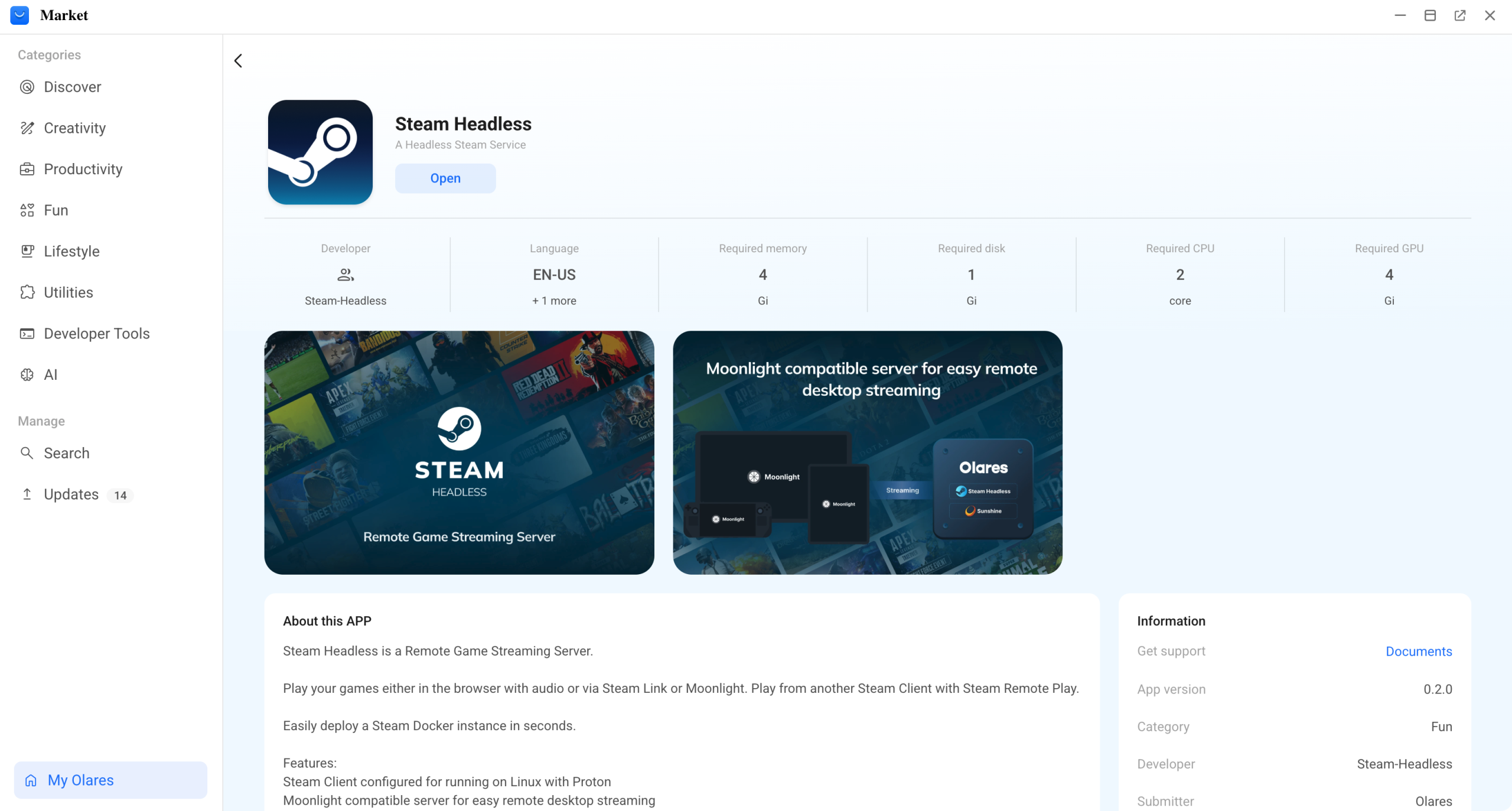
Instead of manually configuring Xorg, I chose the Steam-Headless Docker image running inside an LXC container. This Docker-in-LXC approach is already how I deploy many services throughout my homelab.
The image includes:
- A virtual display, eliminating the need for an HDMI dummy plug.
- A built-in noVNC desktop for initial setup.
- Steam preconfigured with Proton.
- Sunshine already installed.
While Docker inside an LXC running on a hypervisor may sound overly complicated, it works remarkably well.
Basic Installation Steps
From the Proxmox host:
- Create an unprivileged Debian 12 LXC with
--features nesting=1,keyctl=1, a sufficiently large root filesystem, and DHCP configured on the LAN bridge. - Bind both the GPU and uinput devices into the container. In Proxmox 8.2+, this process is much simpler than older cgroup-based methods.
- Install Docker using the standard
get.docker.cominstallation script. - Deploy Steam-Headless with docker-compose, ensuring three critical settings are configured:
network_mode: hostprivileged: true/dev/dri:/dev/driunderdevices
The network_mode: host setting is especially important.
Steam determines whether a client is local based on subnet detection. If Docker uses its own bridge network, Steam incorrectly assumes the client is remote and routes traffic through Valve’s relay servers instead of using a direct LAN connection.
Using the LXC container’s LAN IP ensures Steam Remote Play remains entirely local.
Once deployment is complete:
- Open
http://<container-ip>:8083/web/. - Access the Xfce desktop.
- Install Steam.
- Sign in.
- Enable Remote Play.
After confirming everything worked correctly, I created a Proxmox snapshot and converted the container into a reusable template, making future gaming containers quick to deploy.
Lessons Learned During Installation
Small Problems Can Consume Hours
Working with LXC, Docker, and Steam revealed several unexpected behaviors.
One important lesson is that logs don’t always tell the whole story. Sometimes an apparently frozen installation is simply waiting for user interaction.
At one point, my Steam installation appeared completely stalled. CPU usage was idle, network activity had stopped, and nothing in the logs suggested a problem.
The real issue?
A Zenity dialog from Debian’s Steam installer had opened inside the container and was quietly minimized on the taskbar of a desktop session I wasn’t viewing.
Hardware Detection Can Be Misleading
Another surprise involved GPU detection.
Steam-Headless relies on lspci to identify graphics hardware. Inside a Docker container running within an LXC, lspci returned no GPU information.
As a result, the image incorrectly displayed “No AMD device found” and skipped installation of the required Vulkan drivers.
Interestingly, Sunshine still worked because it uses VA-API directly through /dev/dri, but games themselves would have rendered on the CPU.
The solution was creating a startup script inside the persistent ~/init.d/ directory that force-installs:
mesa-vulkan-drivers- The required
i386Vulkan packages for Proton
Seeing vulkaninfo finally report “AMD Radeon Graphics (RADV GFX1151)” confirmed everything was functioning correctly.
Steam Requires an Unmasked /proc
Steam on Linux depends heavily on Proton, which uses the pressure-vessel sandbox powered by bubblewrap.
Bubblewrap needs permission to mount /proc inside its namespace.
Unfortunately, Docker masks portions of /proc by default, and when combined with an unprivileged LXC, every attempt resulted in an “Operation not permitted” error.
After trying multiple systempaths=unmasked configurations without success, the practical solution was enabling:
privileged: true
Although this sounds concerning, the Docker container still operates inside an unprivileged LXC user namespace, meaning it doesn’t receive real host-level privileges.
Streaming Games with Remote Play and Sunshine
Two Streaming Protocols for Different Needs
Steam Remote Play offers the simplest setup and performs particularly well on AMD hardware because Valve’s Linux implementation supports VA-API hardware encoding for Radeon GPUs.
On Nvidia, the same feature silently falls back to software x264 encoding.
That limitation was one of the primary reasons I selected an AMD GPU for this build.
For the best experience:
- Enable hardware encoding in Steam Remote Play’s advanced host settings.
- Enable hardware decoding on the client device.
- Verify the streaming overlay reports “Direct connection.”
Any device running the Steam client or the Steam Link app works seamlessly, including controller support.
Meanwhile, Steam-Headless also includes Sunshine, providing an even better streaming option.
When paired with Moonlight clients, Sunshine supports:
- HEVC encoding
- AV1 hardware encoding
- Lower latency
- Higher bitrates
- Broad device compatibility
Simply browse to https://<container-ip>:47990, configure credentials, pair a Moonlight client, and begin streaming the same Steam Big Picture session.
My current workflow is straightforward:
- Steam Remote Play for casual gaming on devices that already have Steam installed.
- Moonlight whenever I want the highest possible image quality.
Having both options available from a single container means I never need to choose ahead of time.
A Better Alternative to GPU Passthrough
Ironically, the GPU I never passed through turned out to be the most effective solution.
Everything runs inside an LXC container that can be snapshotted, cloned, and converted into templates just like any other Proxmox container. There are no VFIO configuration headaches, no driver version mismatches, and the Proxmox host continues to use the GPU whenever needed.
Although the complete setup required an evening of work, much of that time was spent tracking down misleading behaviors rather than solving difficult technical problems. Even so, it proved considerably faster than building and maintaining a full GPU passthrough virtual machine.
I’ve already deployed a second gaming container, allowing guests to stream games independently without accessing my own save files.